
Anthropic's Claude Small Business Plugin: 31 Skills Explained
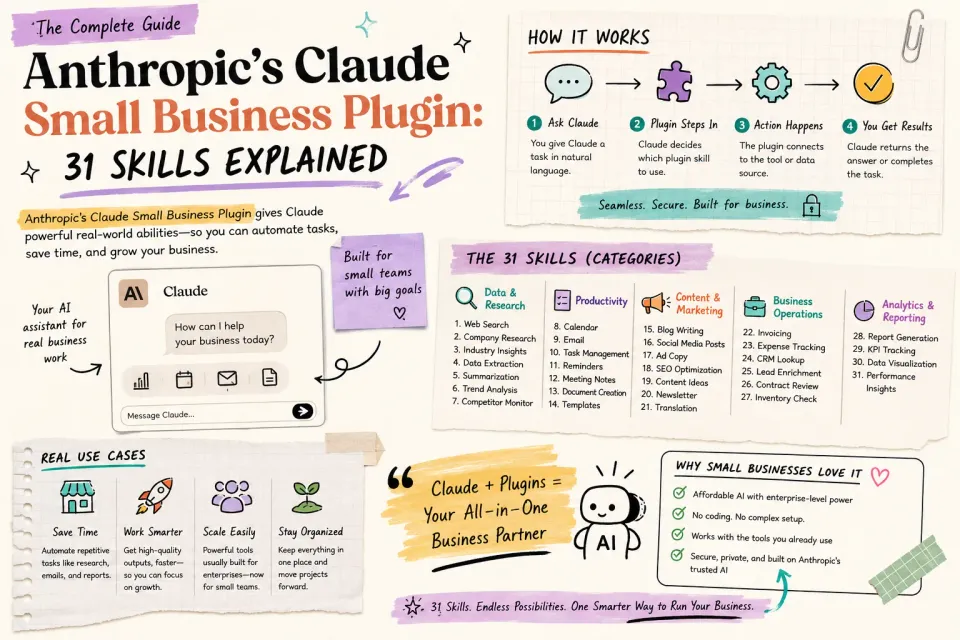
Anthropic has shipped a Small Business Plugin for the Claude Desktop App that bundles pre-built workflow automations into a single installable package. According to Anthropic's official announcement, the plugin includes 15 agentic workflows and 15 skills. The skills connect to 8 core native apps — QuickBooks, PayPal, HubSpot, Canva, DocuSign, Google Workspace, Microsoft 365, and Slack — and can be triggered by typing a keyword inside Claude's co-work mode. For apps not on that native list, a Zapier MCP bridge extends coverage to over 8,000 additional tools.
This is worth paying attention to not because AI automation is new, but because the packaging is different. Rather than asking business owners to write prompts or configure agents, Anthropic has pre-encoded entire multi-step workflows into named, reusable skills. The question is whether the structure holds up under real conditions.
What a Skill Actually Is
The term "skill" here is specific. A skill is a saved workflow — it has a name, a description, and a detailed set of instructions that Claude follows when it's triggered. When you type invoice chase in the co-work interface, Claude doesn't interpret that as a new prompt from scratch. It loads the full Invoice Chase workflow, pulls the relevant data from connected apps, and executes each step in sequence.
Skills can be grouped into plugins, which are shareable bundles. A plugin is essentially a curated collection of skills that can be installed by a team or distributed across accounts without rebuilding anything. The Small Business plugin is one such bundle — published by Anthropic directly in the Claude Desktop App's plugin marketplace.
This architecture matters because it shifts the cognitive load. Instead of crafting a prompt every time you want to follow up on overdue invoices, you define the workflow once (or use Anthropic's pre-built version) and invoke it with a keyword. The instructions inside the skill handle everything else.
The Skills and What They Cover
The plugin ships with 15 skills across common business operations categories, alongside 15 agentic workflows. Not all of them will apply to every business — a solo consultant with no receivables has little use for Invoice Chase — but the categories are broad enough to cover most small business contexts.
The skills pull from whichever apps you've connected. If QuickBooks isn't connected, any skill that expects financial data will return incomplete results. The system is additive: the more connectors you activate, the more accurate and complete the outputs become.
Three skills in particular illustrate how the plugin is designed to work.
Business Pulse
This skill produces a daily business snapshot by querying all connected apps in parallel. QuickBooks, PayPal, and other connected financial tools contribute financial data. HubSpot provides the CRM pipeline. Google Workspace surfaces Gmail inbox activity and Google Calendar meeting context. Slack shows team activity, with Microsoft Teams covered under the broader Microsoft 365 integration.
The output is structured: a TL;DR summary, a top priority action item, a cash and revenue snapshot, a pipeline overview, and any risk flags — for example, clients with overdue payments or a pattern of slow payment. Optionally, it can post the summary to a Slack channel or update HubSpot deal stages automatically.
The practical value here is consolidation. Getting that same picture manually means logging into four or five tools and mentally assembling the data. Business Pulse does that assembly in a single trigger.
Invoice Chase
This skill automates the part of accounts receivable that most people find uncomfortable: writing follow-up emails to clients who haven't paid.
The workflow pulls overdue receivables from QuickBooks and cross-references payment history to score each customer — distinguishing reliable payers from chronically slow ones. It drafts a tone-matched follow-up email for each customer based on that score: softer for good clients who are late for the first time, firmer for repeat offenders.
Critically, it doesn't send anything automatically. The skill presents the drafted emails for your approval before taking action. That human-in-the-loop checkpoint is a deliberate design choice — you review and approve, then Claude sends via Gmail on your behalf. ZDNET notes that this approval-gate pattern appears across several skills where the action is irreversible, which is the right call for anything involving external communication or financial transactions.
Job Post Builder
This skill generates a complete hiring packet from a structured input form. You supply the role title, level, team, reporting structure, day-to-day responsibilities, must-have qualifications, compensation range, and interview process structure. The skill outputs a formatted job post in Markdown, an interview guide with a scoring rubric, and an offer or engagement letter.
If you have DocuSign connected and an active account, the skill can upload the offer letter directly to DocuSign and send it to a candidate's email for signature. That's a meaningful reduction in the administrative overhead of a hire — drafting a job post, building an interview rubric, and handling offer logistics are usually three separate tasks spread across an afternoon.
How to Set Up the Plugin
The plugin requires the Claude Desktop App (available for Mac and Windows). The co-work mode — accessible via a checklist icon in the interface — is where skills are invoked and connectors are managed.
Installing the plugin:
- Open the Claude Desktop App and switch to co-work mode.
- Go to Customize → Plugins → Browse Plugins.
- Find the Small Business plugin and install it.
Connecting apps:
- Go to Customize → Connectors.
- Click + → Browse Connectors.
- Select an app (QuickBooks, HubSpot, Slack, etc.).
- Click +, complete the OAuth authorization in the app's own interface.
- The connector is now active.
The order matters: install the plugin first, then connect the apps the skills need. Running Business Pulse before connecting any financial tools will produce a thin output — Claude will summarize what it can find, which won't be much.
For a more detailed walkthrough of the setup sequence, How to Use Claude's Small Business Plugin Pack covers account configuration and connector authorization in more depth.
Extending Coverage with Zapier MCP
The 8 native connectors cover common tools, but plenty of businesses run software that isn't on that list — industry-specific CRMs, project management tools, niche accounting platforms, or internal dashboards. The Zapier MCP connector handles those gaps.
MCP stands for Model Context Protocol, which is essentially a standardized interface that allows Claude to communicate with external tools. Zapier acts as middleware: you connect your app to Zapier, and Zapier exposes it to Claude through the MCP layer. Zapier's MCP guide describes support for over 8,000 applications, which makes it a practical fallback for almost any integration gap.
Setting up Zapier MCP:
- Go to zapier.com/mcp.
- Click New MCP Server → select Claude Co-work.
- Click Add Connectors, search for the app you need, and select it.
- Choose Select All Tools → Add Tool.
- Click Connect → Add to Claude.
- Zapier will now appear in your connector list.
The Zapier path adds a dependency — you need a Zapier account and, depending on the app, possibly a paid Zapier plan — but it's a reliable bridge for situations where Claude's native connector list falls short.
What Makes This Different from Generic Prompting
The most important thing to understand about this plugin is what it's not. It's not a chatbot you describe your business to every morning. It's a set of structured, repeatable workflows that happen to be powered by a language model.
The distinction shows up in reliability. A free-form prompt asking Claude to "review my outstanding invoices and draft follow-ups" will produce variable results depending on how the question is phrased and what context is available. The Invoice Chase skill encodes the full logic — data sources, scoring criteria, tone calibration, approval gate — in a way that produces consistent behavior each time it's triggered.
That structure also makes skills auditable. If the Invoice Chase drafts feel off, you can inspect the skill instructions, find the tone-matching logic, and adjust it. That's harder to do when the behavior lives entirely inside a prompt you typed ad hoc.
The Decoder notes that the agent workflow model — where Claude sequences through multiple tool calls to complete a task — is increasingly where Anthropic is investing, and the Small Business plugin reflects that direction. Skills are mini-agents: they have goals, they call tools, they produce outputs, and they hand off to humans at defined checkpoints.
Honest Limitations to Keep in Mind
A few things the source material makes clear, and that are worth stating plainly:
Connector dependency is real. Skills that rely on apps you haven't connected will return incomplete or empty results. This sounds obvious, but it means the value of the plugin scales directly with how many connectors you've activated. A business running on a single tool won't see the same benefit as one with QuickBooks, HubSpot, and Slack all connected.
Not all skills will apply. The plugin is a general-purpose bundle. A two-person creative agency and a ten-person e-commerce operation have different needs. Spending time identifying the three or four skills most relevant to your specific workflow is more useful than trying to use all of them.
DocuSign integration has its own requirements. The Job Post Builder's ability to send offer letters via DocuSign only works if you have an active DocuSign account connected. If you don't use DocuSign, the output is a Word document or Markdown file — still useful, just without the e-signature step.
The plugin doesn't replace judgment. Invoice Chase drafts emails, but you approve them. Business Pulse flags risks, but you decide what to do about them. The approval gates are a feature, not a limitation — but it means the plugin accelerates decision-making rather than replacing it.
Running mathe.city means I generate a lot of structured content from templates — one skill per article type, fixed instructions, consistent output — so the idea of encoding that logic into a named, inspectable workflow rather than a prompt I retype each session is something I've landed on independently, just without the polished packaging.
Sources used by Gemini grounding
- Anthropic's Newest Claude Feature Is Here to Help Small-Business Owners With Their Pain Points - Inc. Magazine
- Claude for Small Business: 6 Platform Integration Guide - Rewarx Studio
- Claude for Small Business: How to Use the New Plugin Packs for Finance, HR, and Sales
- Top Model Context Protocol (MCP) Apps & Software | Zapier
- Introducing Claude for Small Business - Anthropic
- Claude for Small Business: Anthropic's New AI Platform for SMB Growth - Busylike
- How to Use Claude's Small Business Plugin Pack: Setup, Skills, and Connectors
- Anthropic Scales Claude AI Across 7 Small Business Apps | PYMNTS.com
- Get started with the desktop app - Claude Code Docs
- Clients - Zapier docs